Everything Welcome sets up is editable. Treat the first check as a starting point. Every competitor, topic, prompt and schedule can be changed from the dashboard at any time. You can also make these edits from Claude or any MCP-capable client through the OpenLens MCP server. See Configure the OpenLens MCP server.
1. About you
Welcome starts with a few quick questions:- what to call you;
- your agency or organization, if you have one;
- what you want from OpenLens.
- see how AI describes my brand;
- compare my visibility with competitors;
- find which sources AI trusts and cites;
- know what content to create or update;
- measure the impact of our SEO and content work;
- check if my site is ready for AI search and AI agents;
- report AI visibility to clients or leadership.
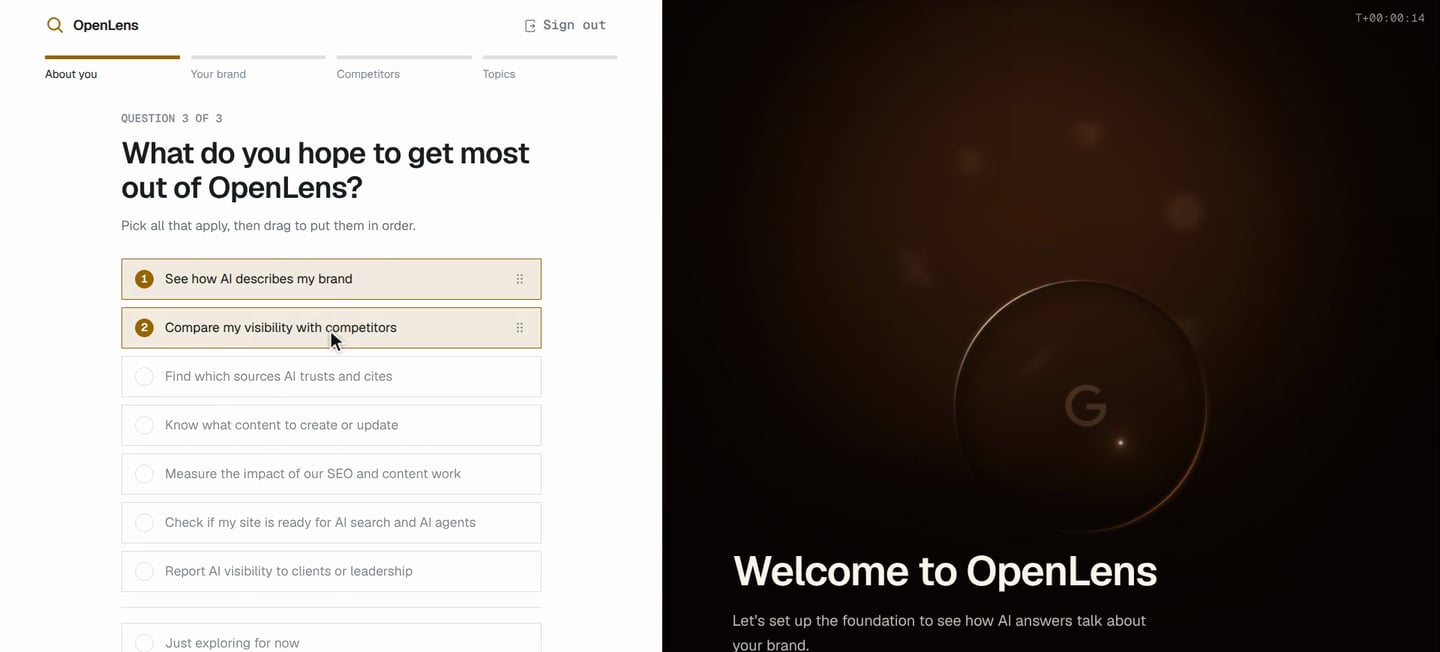
Pick your goals and drag them into order.
2. Your brand
Enter the brand name and its website, then click Research my brand. If you tried the OpenLens preview on the homepage before signing up, Welcome already knows the brand. Confirm Track ? and research starts right away.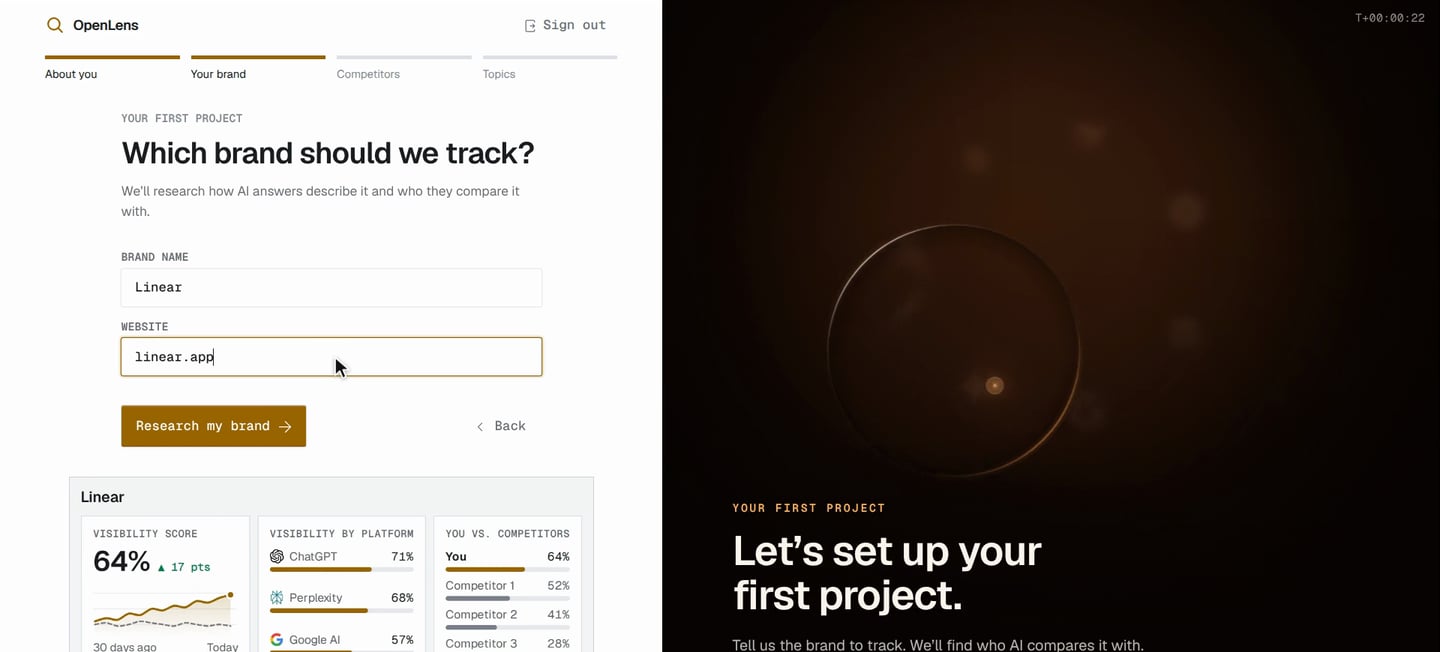
Tell OpenLens which brand to track.
3. Research
OpenLens reads the website and public sources to learn what the brand does and which companies AI compares it with. This usually takes about a minute, and the checklist shows each stage as it completes.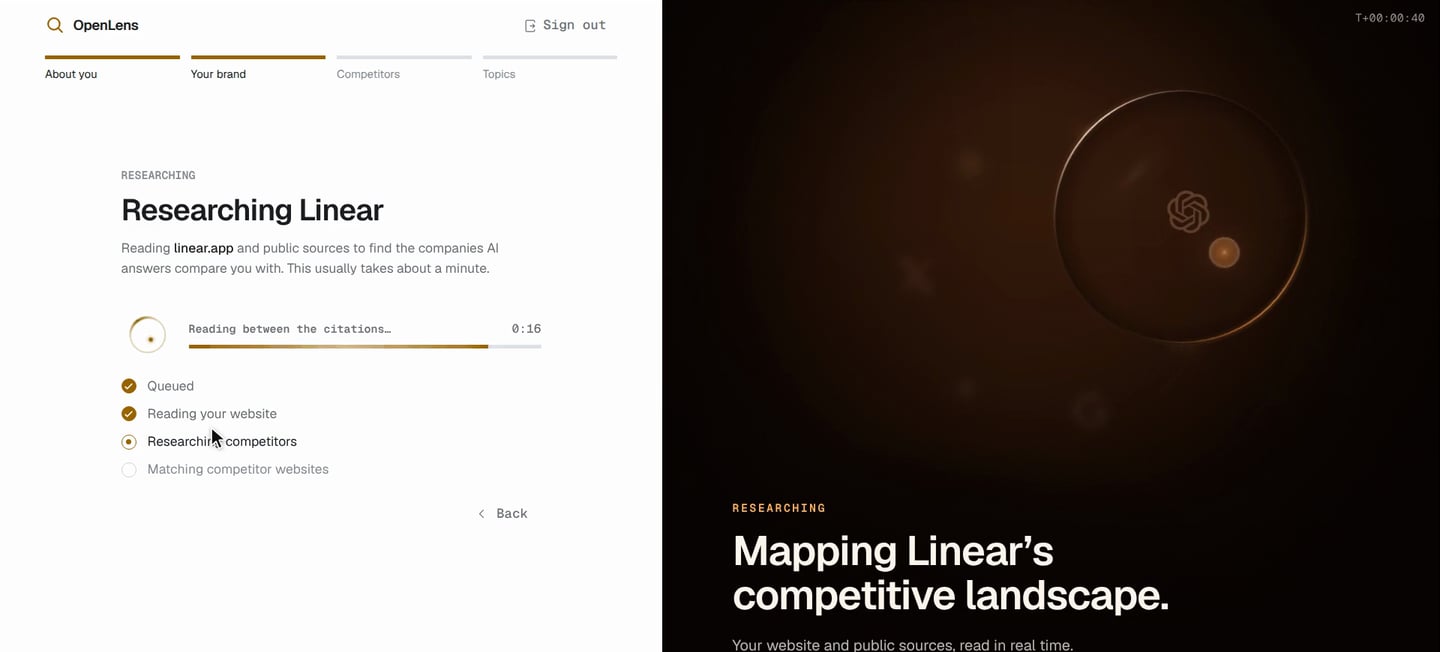
OpenLens researches the brand and its market.
4. Competitors
Review the competitors the research found. You can keep up to five:- remove any that don’t belong;
- add ones it missed;
- use Edit to fix a name or website.
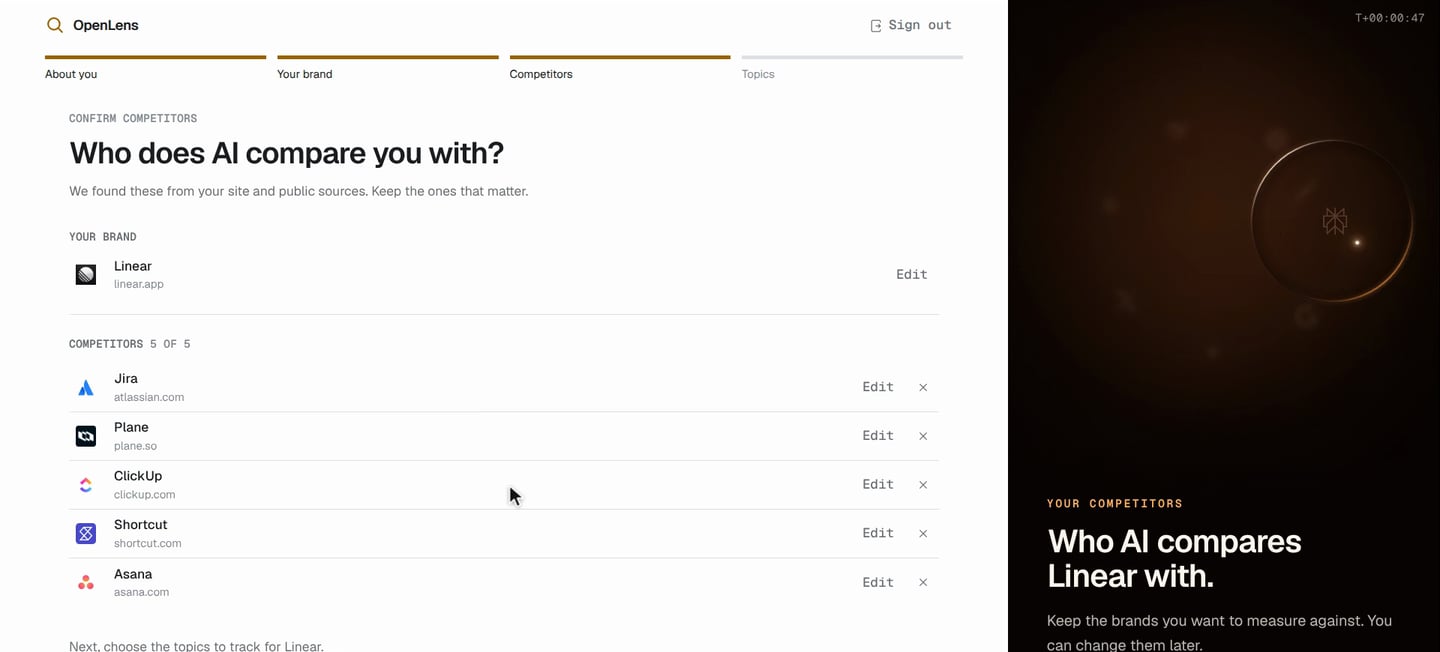
Confirm who AI compares you with.
5. Topics
Name what you want to track: the subjects your customers ask AI about. Type your own, or pick from the suggestions the research found. Each topic becomes five prompts, the questions OpenLens asks every AI platform on your plan. Click Build my dashboard when you’re done. You can add more topics, and edit or add prompts, later in Manage Prompts. If you don’t name any topics, the project starts with a Brand Identity topic: five questions about what your brand is, its strengths and weaknesses, how it compares with your first competitor, its alternatives, and what customers say about it.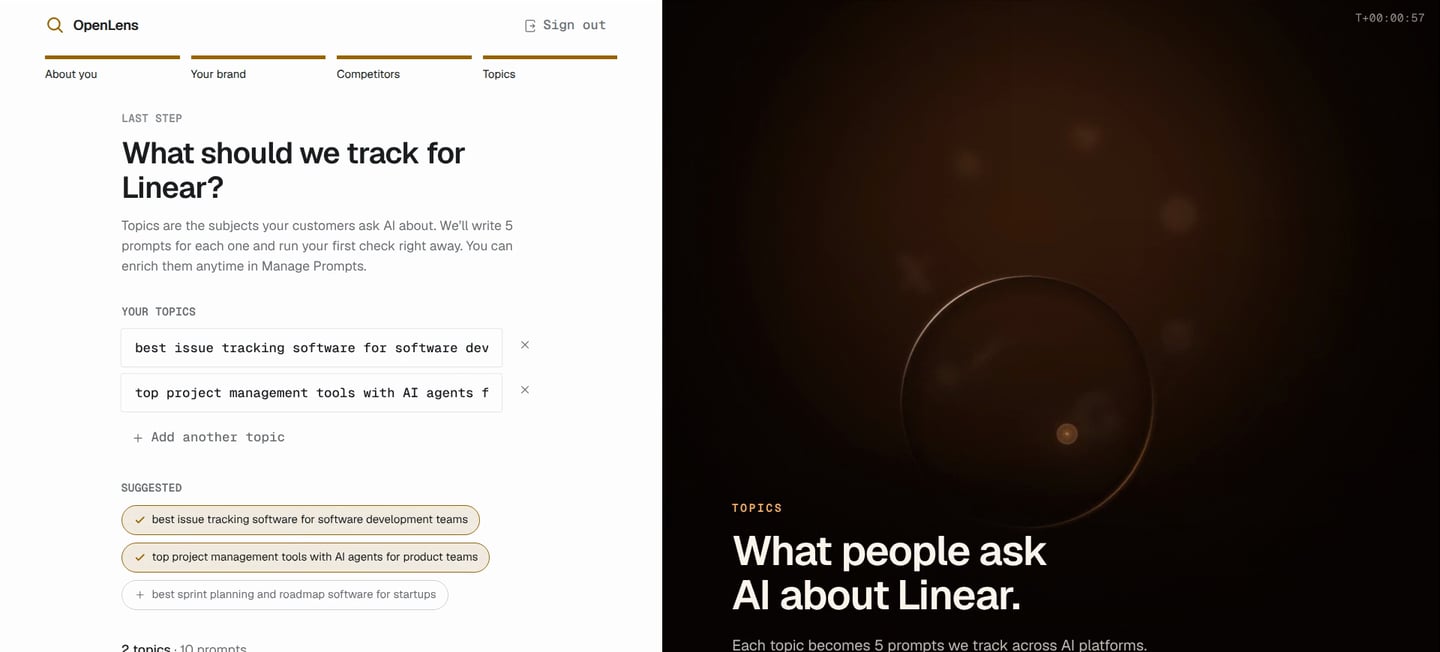
Pick the topics to track, then Build my dashboard.
6. Free trial (optional)
While your dashboard is being built, a workspace on the Free plan can start a 7-day free trial of Starter or Agency. Each plan card shows its AI platforms and what it adds over Free. Start free trial opens Stripe Checkout:- nothing is due today;
- the plan continues when the trial ends unless you cancel first;
- if you leave Checkout, with its back link or your browser’s Back button, you return to the offer.
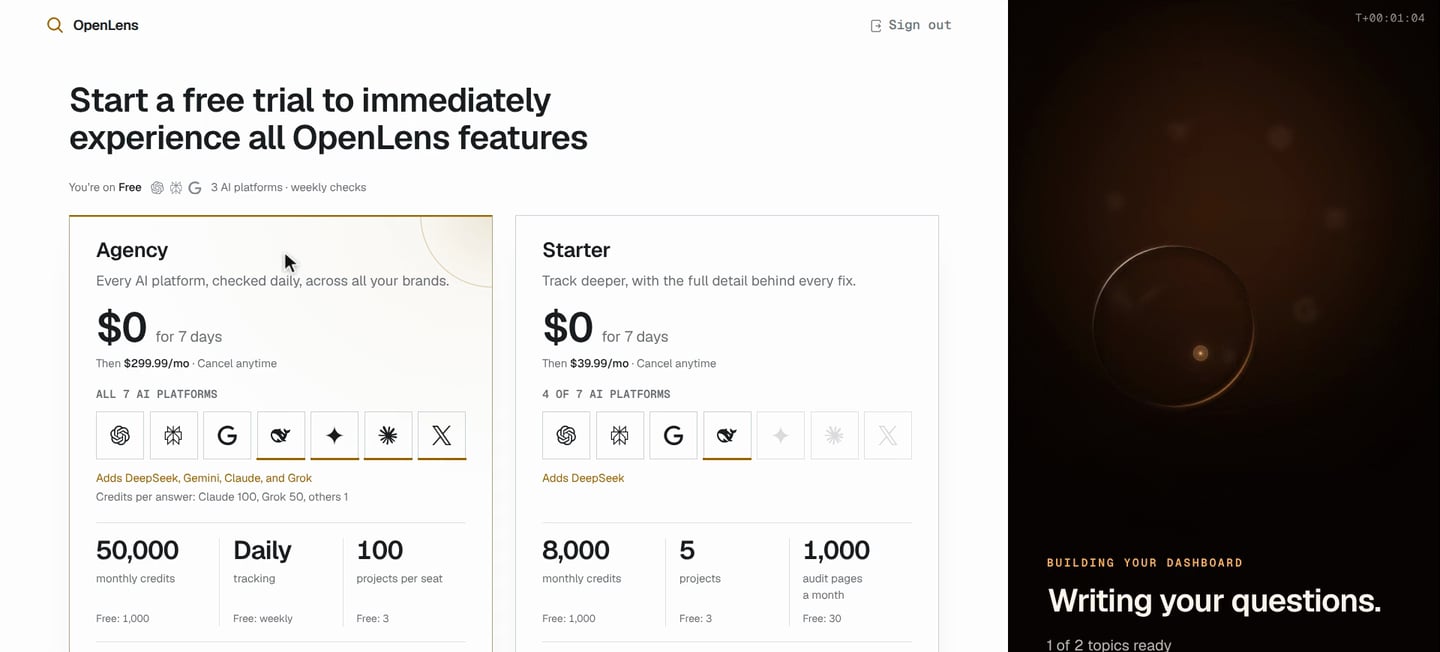
Try Starter or Agency free for 7 days, or skip for now.
7. Your first check
As soon as the prompts are ready, OpenLens starts the project’s first check:- It runs every prompt on each AI platform your plan includes. Answers stream onto the dashboard as they arrive, and you can leave the page while it runs.
- It uses credits like any run you start yourself.
- Weekly re-checks switch on with it, so your numbers keep updating. Turn them off from the banner on the first-check page, or change the cadence in Settings.
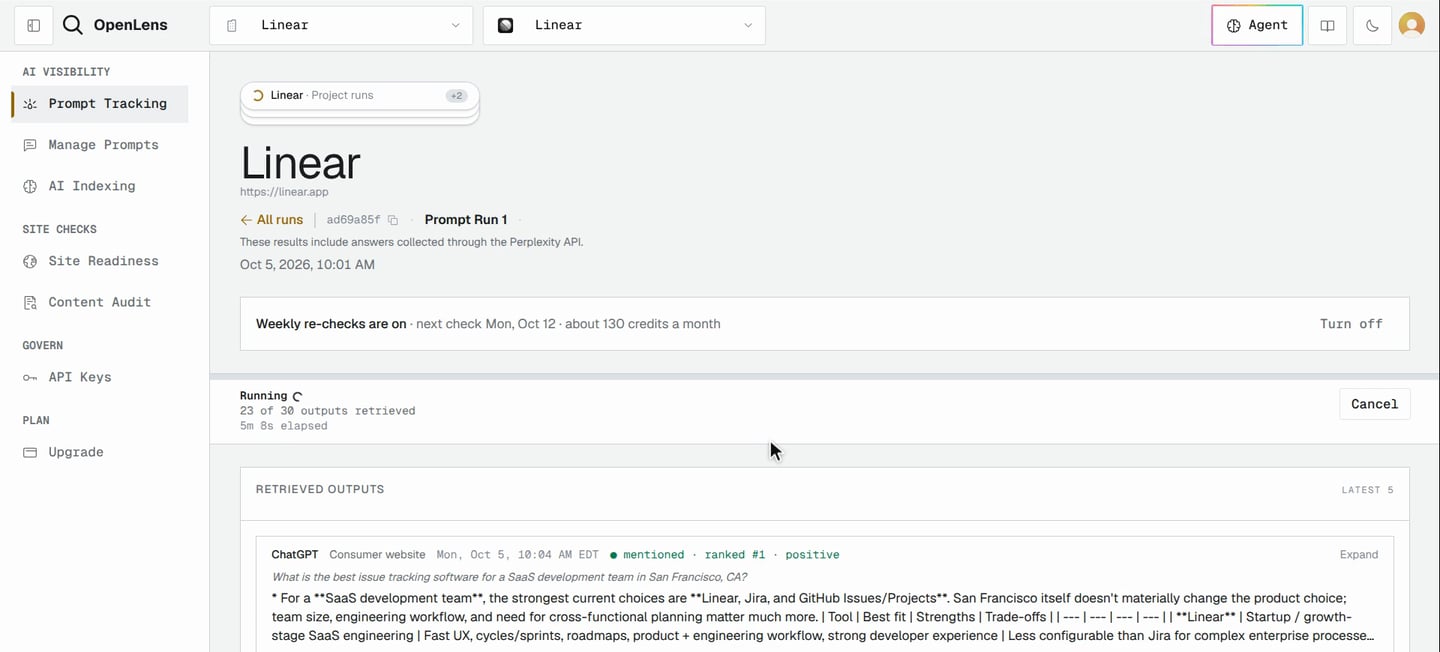
The first check starts on its own; answers stream in live.
8. Your first results
When the check completes, the dashboard shows:- visibility;
- share of voice;
- average position;
- a per-platform scorecard;
- how you compare with your competitors.
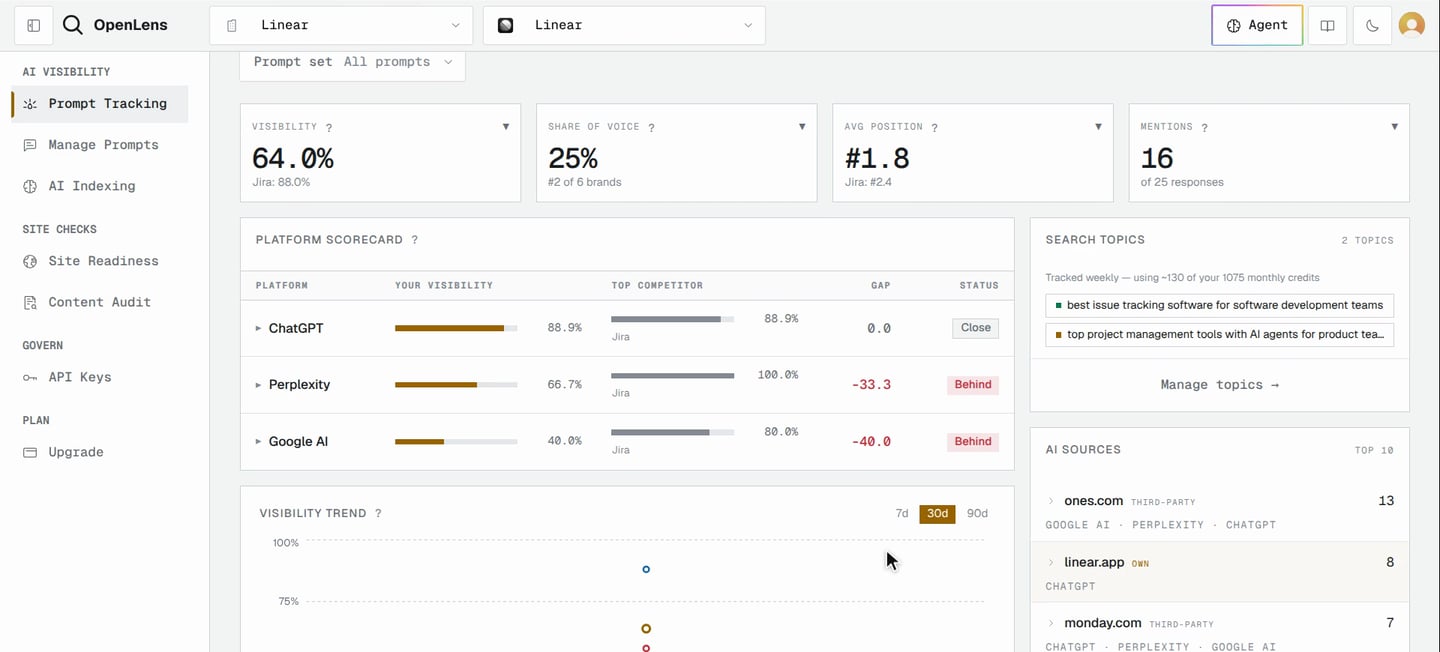
Your first results: visibility, share of voice and a platform scorecard.
Adding another project
Welcome runs once, for your first project. To track another brand, open Your projects and click Add project:- Enter the brand’s website, and OpenLens analyzes it, usually in 30 to 60 seconds.
- Confirm the brand and its competitors.
- Open the project while its prompts are prepared in the background.